Decorated Window
Compose for Desktop does not natively expose a way to draw custom content in the title bar while keeping native window controls and behavior (drag, resize, double-click maximize). On macOS, the underlying Swing layer does offer JRootPane client properties (such as apple.awt.fullWindowContent and apple.awt.transparentTitleBar) that let you extend Compose content into the title bar area while keeping native traffic lights — but this is a Swing-level mechanism, not a Compose API, and it does not give you a composable layout model for the title bar. On Windows and Linux there is no equivalent — your only option is a fully undecorated window where you reimplement everything from scratch.
The decorated window modules bridge this gap. They are completely design-system agnostic — no dependency on Jewel, no dependency on Material 3. You wire in whatever color tokens your app uses (Material 3, Jewel, your own design system, or a plain Color literal).
Optional convenience modules exist for automatic color wiring: decorated-window-jewel reads JewelTheme, decorated-window-material2 reads MaterialTheme.colors, and decorated-window-material3 reads MaterialTheme.colorScheme — but they are separate artifacts and are not required by the base modules.
The implementation was originally inspired by Jewel's decorated window. Key divergences from Jewel's own implementation:
- No JNA — all native calls use JNI only, removing the JNA dependency entirely
- No Jewel dependency — the base modules have zero runtime dependency on Jewel
DecoratedDialog— custom title bar for dialog windows, which Jewel does not provide- Reworked Linux rendering — the entire Linux experience has been rebuilt from the ground up to look as native as possible, even though everything is drawn with Compose: platform-accurate GNOME Adwaita and KDE Breeze window controls, proper window shape clipping, border styling, and full behavior emulation (drag, double-click maximize, focus-aware button states)
Module Structure
The decorated window functionality is split into three modules:
| Module | Artifact | Description |
|---|---|---|
decorated-window-core |
nucleus.decorated-window-core |
Shared types, layout, styling, resources. No platform-specific code. |
decorated-window-jbr |
nucleus.decorated-window-jbr |
JBR-based implementation. Uses JetBrains Runtime's CustomTitleBar API on macOS and Windows. |
decorated-window-jni |
nucleus.decorated-window-jni |
JBR-free implementation. Uses JNI native libraries on all platforms, with pure-Compose fallbacks when native libs are unavailable. |
Both decorated-window-jbr and decorated-window-jni expose the same public API. Choose the one that fits your runtime:
decorated-window-jbr — JetBrains Runtime implementation
Uses JetBrains' official CustomTitleBar API. This is the more battle-tested option, backed by the same code that powers IntelliJ IDEA and other JetBrains products. Requires JBR.
However, there is a known issue on Windows:
- The window cannot open in maximized state directly — you need to use a
LaunchedEffectwith a short delay after the window appears, then setWindowPlacement.Maximized
This is an upstream JBR bug, not a Nucleus bug. The module throws an IllegalStateException at startup if JBR is not detected.
Tip
When running via ./gradlew run, Gradle uses the JDK configured in your toolchain. Make sure it is a JBR distribution if using this module.
macOS: --add-opens required for IDE run configurations
On macOS, this module uses reflection on sun.awt.AWTAccessor to obtain the native NSWindow pointer. The Nucleus plugin injects the required --add-opens flags automatically for ./gradlew run and packaged applications, but if you launch your app directly from the IDE (e.g. clicking the Run button on main()), you must add these JVM arguments to your run configuration manually:
--add-opens=java.desktop/sun.awt=ALL-UNNAMED
--add-opens=java.desktop/sun.lwawt=ALL-UNNAMED
--add-opens=java.desktop/sun.lwawt.macosx=ALL-UNNAMED
Without these flags, you will see an IllegalAccessException on sun.awt.AWTAccessor and title bar color updates will not work.
decorated-window-jni — Nucleus native implementation
Entirely implemented by Nucleus using JNI native libraries on all platforms. None of the JBR bugs mentioned above are present — window maximization and drag work reliably.
This module does not depend on JBR, making it compatible with any JVM (OpenJDK, GraalVM Native Image, etc.). It was specifically designed for use cases where JBR is not available, such as GraalVM native-image builds. On Linux, pair it with linux-hidpi for correct HiDPI support.
macOS: Liquid Glass and Xcode 26 appearance
Nucleus automatically patches the application launcher's LC_BUILD_VERSION to macOS SDK 26.0 via vtool, enabling Liquid Glass window decorations (larger traffic lights, rounded corners). This works with any JDK — a JDK compiled with Xcode 26 is no longer required. See macOS 26 Window Appearance for details and configuration options.
Windows: DPI-aware minimum and maximum window size
On non-JBR JVMs (OpenJDK, GraalVM), Window.minimumSize and Window.maximumSize are stored in logical pixels but Windows expects physical pixels in WM_GETMINMAXINFO. This causes the enforced min/max size to be too small on HiDPI displays (e.g. a 640×480 minimum becomes 427×320 at 150% scaling). JBR fixes this internally with ScaleUpX/ScaleUpY.
The JNI module replicates this fix: it intercepts WM_GETMINMAXINFO after AWT and applies MulDiv(value, dpi, 96) scaling. Just set window.minimumSize or window.maximumSize as usual — the DPI correction is automatic.
This fix is not present in decorated-window-jbr (JBR handles it natively).
Windows: no white background flash during resize
On Windows, Skiko's rendering pipeline clears the DirectX canvas to white before each frame. When the window is resized larger, the newly exposed pixels remain white for one frame — producing a visible white flash. The JNI module eliminates this by adjusting Skiko's clear color to transparent for dark themes (rendered as opaque black on the DirectX surface), so the flash is invisible against a dark background. It also synchronizes the DWM caption and border colors (DWMWA_CAPTION_COLOR, DWMWA_BORDER_COLOR, DWMWA_USE_IMMERSIVE_DARK_MODE) with the title bar color for consistent Windows 11 window chrome styling.
This fix is not present in decorated-window-jbr.
macOS: resize behavior
On macOS, resizing a window triggers a modal tracking loop on the main thread. Skiko's Metal layer (CAMetalLayer) presents frames asynchronously, which means macOS may briefly stretch stale frame content to fill the new window size during rapid resize.
Both the JNI and JBR modules rely on this default asynchronous presentation. An earlier approach using CAMetalLayer.presentsWithTransaction during live resize was removed because synchronous presentation blocked the main thread on every frame, causing significant resize lag — especially on heavy Compose layouts.
Less battle-tested
While the JNI module has no known bugs, it has not been as widely tested as the JBR implementation. Use it with appropriate caution in production, and report any issues you encounter.
Installation
Choose one implementation:
dependencies {
    // Option 1: JBR-based (requires JetBrains Runtime)
    implementation("io.github.kdroidfilter:nucleus.decorated-window-jbr:<version>")

    // Option 2: JNI-based (works on any JVM)
    implementation("io.github.kdroidfilter:nucleus.decorated-window-jni:<version>")
}
Optionally, if you use a supported design system and want automatic color wiring, add the companion module matching your theme. This is not required for the base decorated window to work.
dependencies {
    // Optional — pick one depending on your design system
    implementation("io.github.kdroidfilter:nucleus.decorated-window-jewel:<version>")    // Jewel (IntelliJ)
    implementation("io.github.kdroidfilter:nucleus.decorated-window-material2:<version>") // Material 2
    implementation("io.github.kdroidfilter:nucleus.decorated-window-material3:<version>") // Material 3
}
Note
See decorated-window-jewel, decorated-window-material2, or decorated-window-material3 for details on the design system wrappers. If you use a custom theme, skip these modules and map your colors manually as shown in the Styling section below.
Quick Start
fun main() = application {
    NucleusDecoratedWindowTheme(isDark = true) {
        DecoratedWindow(
            onCloseRequest = ::exitApplication,
            title = "My App",
        ) {
            TitleBar { state ->
                Text(
                    title,
                    modifier = Modifier.align(Alignment.CenterHorizontally),
                    color = LocalContentColor.current,
                )
            }
            // Your app content
            MyContent()
        }
    }
}
Screenshots
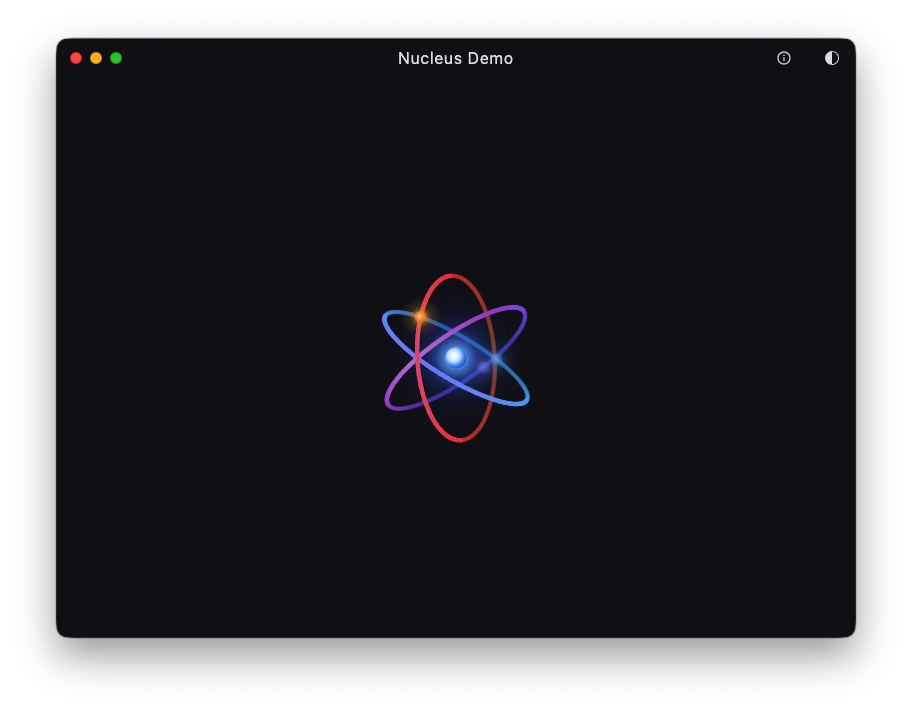
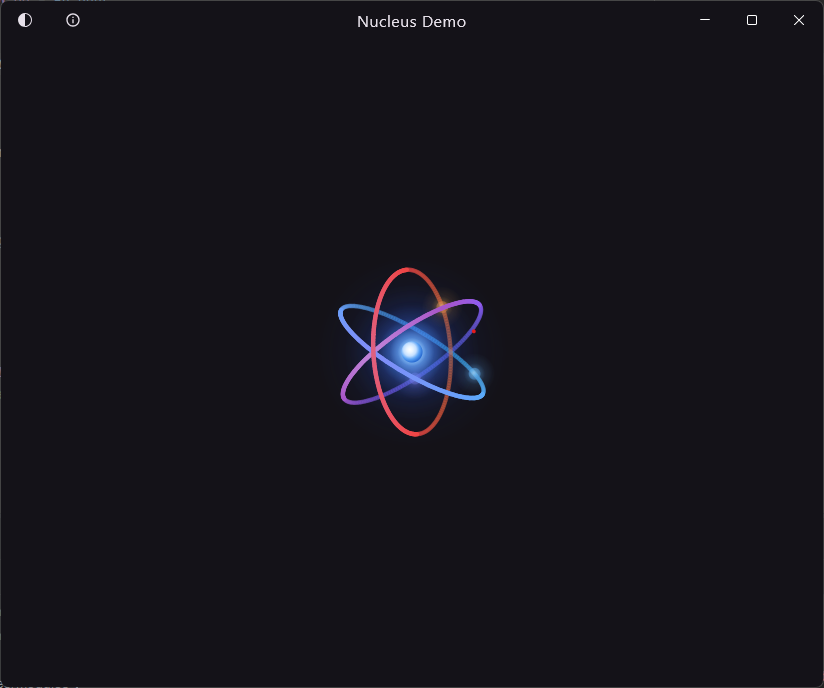
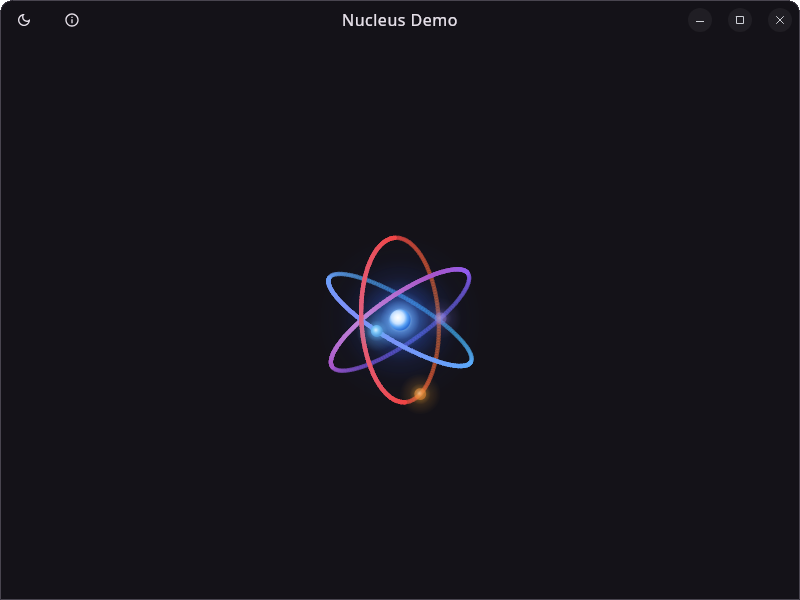
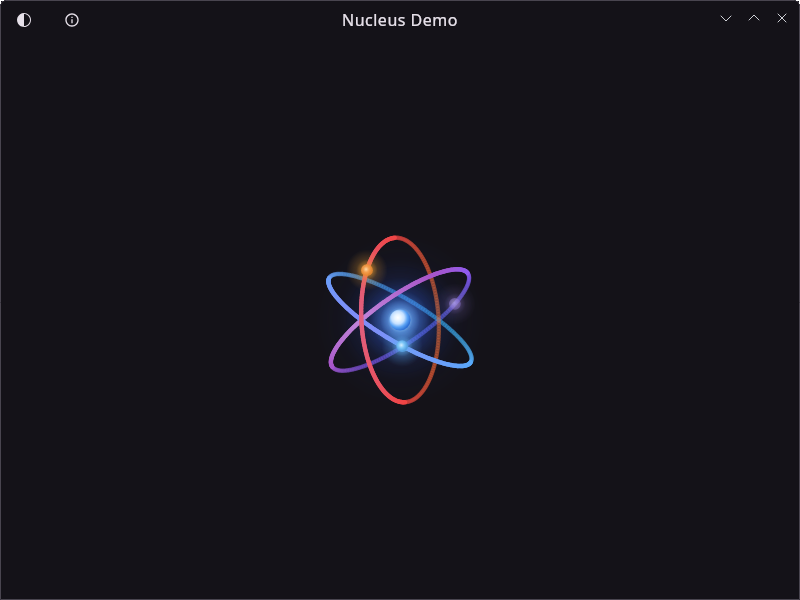
Platform Comparison
The following tables compare a standard Compose Window(), the JBR module (decorated-window-jbr), and the JNI module (decorated-window-jni) across all three platforms.
macOS
| Feature | Compose Window() |
decorated-window-jbr |
decorated-window-jni |
|---|---|---|---|
| Custom title bar content | No | Yes (JBR CustomTitleBar) |
Yes (JNI native bridge) |
| Window controls | Native traffic lights | Native traffic lights | Native traffic lights |
| Title bar drag | Native | JBR hit-test | nativeStartWindowDrag() via JNI |
| Double-click maximize | Native | Native (via JBR CustomTitleBar) |
Native via JNI |
| Window snapping / tiling | Native | Native | Native (swizzled _adjustWindowToScreen) |
| Resize flash / freeze | Image freezes during resize | No freeze (JBR handles it) | Async Metal presentation (same as JBR) |
| 26pt corner radius | No | No | Yes (macOSLargeCornerRadius()) |
| Fullscreen controls | No custom title bar | macOS native (apple.awt.newFullScreenControls) |
Sliding overlay (newFullscreenControls()) |
| RTL support | No custom title bar | No (requires custom JBR) | Yes (live hot-swap, traffic lights move to right) |
| JDK requirement | Any | JBR only | Any (requires Xcode 26-compiled JDK for native features) |
| Fallback (no native lib) | N/A | N/A | AWT client properties (no custom positioning) |
Windows
| Feature | Compose Window() |
decorated-window-jbr |
decorated-window-jni |
|---|---|---|---|
| Custom title bar content | No | Yes (JBR CustomTitleBar) |
Yes (JNI DLL, WndProc subclass) |
| Window controls | Native | Native min/max/close | Compose-drawn (SVG icons, Windows style) |
| Title bar drag | Native | JBR forceHitTest + clientRegion |
Native DLL or Compose fallback |
| Double-click maximize | Native | Native (via JBR CustomTitleBar) |
Compose detection |
| Window snapping / tiling | Native | Native | Native (via WM_NCLBUTTONDOWN + HTCAPTION) |
| Resize white flash | White flash on dark themes | White flash on dark themes | Fixed — WM_ERASEBKGND fill + SWP_NOCOPYBITS + DWM color sync |
| Open in maximized state | Works | Broken (requires LaunchedEffect workaround) |
Works |
| Drag reliability | Native | Reliable (clientRegion hit-test) |
Reliable |
| True fullscreen | Broken (doesn't cover taskbar) | Broken (doesn't cover taskbar) | Fixed — native Win32 fullscreen (newFullscreenControls()) |
| Fullscreen sliding title bar | No | No | Yes (newFullscreenControls()) |
| DWM dark mode sync | No | No | Yes (DWMWA_USE_IMMERSIVE_DARK_MODE, caption/border color) |
| DPI-aware min/max size | Broken on non-JBR | JBR handles it | Fixed — WM_GETMINMAXINFO DPI scaling |
| RTL support | No custom title bar | Yes (no hot-swap, restart required) | Yes (live hot-swap) |
| JDK requirement | Any | JBR only | Any |
| Fallback (no native lib) | N/A | N/A | Compose windowDragHandler() (no WndProc subclass) |
Linux
| Feature | Compose Window() |
decorated-window-jbr |
decorated-window-jni |
|---|---|---|---|
| Custom title bar content | No | Yes (fully undecorated) | Yes (fully undecorated) |
| Window controls | WM-provided | Compose WindowControlArea (SVG) |
Compose WindowControlArea (SVG) |
| Desktop environment styling | WM-provided | GNOME Adwaita / KDE Breeze icons | GNOME Adwaita / KDE Breeze icons |
| System button layout | WM-provided | Reactive (GSettings observer) | Reactive (GSettings observer) |
| Window shape | WM-provided | Rounded corners (GNOME 12dp, KDE 5dp top only) | Rounded corners (GNOME 12dp, KDE 5dp top only) |
| Title bar drag | WM-provided | JBR.getWindowMove() |
_NET_WM_MOVERESIZE via JNI or Compose fallback |
| Double-click maximize | WM-provided | Compose detection | Compose detection |
| True fullscreen | WM-provided | Compose WindowPlacement.Fullscreen |
Native _NET_WM_STATE_FULLSCREEN via JNI |
| Fullscreen sliding title bar | No | No | Yes (newFullscreenControls()) |
| RTL support | No custom title bar | Yes (hot-swap) | Yes (hot-swap) |
| JDK requirement | Any | JBR only | Any |
| Fallback (no native lib) | N/A | N/A | Compose windowDragHandler() |
Summary
| Capability | Compose Window() |
JBR | JNI |
|---|---|---|---|
| Custom title bar | ✅ | ✅ | |
| Works on any JDK | ✅ | ✅ | |
| GraalVM native-image | ✅ | ✅ | |
| No resize artifacts (macOS) | ✅ | ||
| No resize artifacts (Windows) | ✅ | ||
| True fullscreen (Windows) | ✅ | ||
| Native fullscreen (Linux) | ✅ | ||
| DWM dark mode sync (Windows) | ✅ | ||
| 26pt corner radius (macOS) | ✅ | ||
| Fullscreen sliding title bar (all platforms) | ✅ | ||
| macOS native fullscreen controls | ✅ | ✅ | |
| RTL live hot-swap (all platforms) | ✅ | ||
| Dialog centering on parent | ✅ | ✅ | |
| Battle-tested | ✅ | ✅ |
Components
NucleusDecoratedWindowTheme
Provides styling for all decorated window components via CompositionLocal. Must wrap DecoratedWindow / DecoratedDialog.
NucleusDecoratedWindowTheme(
    isDark: Boolean = true,
    windowStyle: DecoratedWindowStyle = DecoratedWindowDefaults.dark/lightWindowStyle(),
    titleBarStyle: TitleBarStyle = DecoratedWindowDefaults.dark/lightTitleBarStyle(),
) {
    // DecoratedWindow / DecoratedDialog go here
}
The isDark flag selects the built-in dark or light presets. Pass your own windowStyle / titleBarStyle to override any or all values.
DecoratedWindow
Drop-in replacement for Compose Window(). Manages window state (active, fullscreen, minimized, maximized) and platform-specific decorations.
DecoratedWindow(
    onCloseRequest = ::exitApplication,
    state = rememberWindowState(),
    title = "My App",
    icon = null,
    resizable = true,
) {
    TitleBar { state -> /* title bar content */ }
    // window content
}
The content lambda receives a DecoratedWindowScope which exposes:
window: ComposeWindow— the underlying AWT windowstate: DecoratedWindowState— current window state (.isActive,.isFullscreen,.isMinimized,.isMaximized)
DecoratedDialog
Same concept for dialog windows. Uses DialogWindow internally. Dialogs only show a close button on Linux (no minimize/maximize).
DecoratedDialog(
    onCloseRequest = { showDialog = false },
    title = "Settings",
    resizable = false,
) {
    DialogTitleBar { state ->
        Text(title, modifier = Modifier.align(Alignment.CenterHorizontally))
    }
    // dialog content
}
Automatic centering on parent window (decorated-window-jni only)
When DecoratedDialog is composed inside a DecoratedWindow, it is automatically positioned centered on its parent window — no extra code needed. This is handled by hooking into the AWT windowOpened event, which fires exactly when the native dialog window is first shown. At that point, Compose Desktop has already applied any DialogState position, so the centering override reliably lands at the right time.
If there is no parent window in the composition tree (for example, a dialog opened from a non-windowed context), the dialog falls back to being centered on the screen (setLocationRelativeTo(null)).
This behavior is not present in decorated-window-jbr.
TitleBar / DialogTitleBar
Platform-dispatched title bar composable. Provides a TitleBarScope with:
title: String— the window title passed toDecoratedWindowicon: Painter?— the window iconModifier.align(alignment: Alignment.Horizontal)— positions content within the title bar
TitleBar { state ->
    // Left-aligned icon
    Icon(
        painter = myIcon,
        contentDescription = null,
        modifier = Modifier.align(Alignment.Start),
    )

    // Centered title
    Text(
        title,
        modifier = Modifier.align(Alignment.CenterHorizontally),
        color = LocalContentColor.current,
    )

    // Right-aligned action
    IconButton(
        onClick = { /* ... */ },
        modifier = Modifier.align(Alignment.End),
    ) {
        Icon(Icons.Default.Settings, contentDescription = "Settings")
    }
}
Centered content is automatically shifted to avoid overlapping with start/end content.
controlButtonsDirection — Independent Button Placement
By default, the window control buttons (close, minimize, maximize) follow the same layout direction as the title bar content. This means that in an RTL locale, both the content and the buttons mirror together.
The controlButtonsDirection parameter lets you decouple the two: you can have RTL content in the title bar while keeping the control buttons on their conventional side, or vice versa.
TitleBar(
    controlButtonsDirection = ControlButtonsDirection.Ltr,
) { state ->
    // Content follows LocalLayoutDirection (e.g. RTL for Arabic),
    // but control buttons always stay on the right side (LTR trailing).
    Text(title, modifier = Modifier.align(Alignment.CenterHorizontally))
}
| Value | Behavior |
|---|---|
Auto |
Follows Compose LocalLayoutDirection — the previous default behavior. |
System |
Follows the JVM platform locale (java.util.Locale). |
Ltr |
Always places buttons as in a left-to-right layout (trailing = right side). |
Rtl |
Always places buttons as in a right-to-left layout (trailing = left side). |
The default is Auto, which preserves backward compatibility.
This parameter is available on TitleBar (both JBR and JNI modules) and on MaterialTitleBar.
On macOS, this controls the native traffic-light button position (via JBR controls.rtl or JNI nativeSetRTL). On Windows and Linux, it controls the placement of the Compose-rendered control buttons.
Modifier.clientRegion() — Interactive Title Bar Regions
When you place interactive elements (buttons, dropdowns, etc.) inside a TitleBar, they need to receive mouse events instead of triggering window dragging. The clientRegion modifier registers a composable as an interactive area within the title bar, so the platform's hit-test system knows to treat it as a clickable region rather than a drag surface.
This is particularly important with decorated-window-jbr, where the old pointer-event-based approach could occasionally miss drag events on Windows. The new clientRegion modifier uses AWT-level mouse listeners with precise coordinate-based hit testing, which is more reliable.
TitleBar { state ->
    // This dropdown is marked as a client region — clicks go to
    // the dropdown, not to the window drag handler.
    Dropdown(
        modifier = Modifier.align(Alignment.Start).clientRegion("main_menu"),
        menuContent = { /* ... */ },
    ) {
        Text("File")
    }

    Text(title, modifier = Modifier.align(Alignment.CenterHorizontally))

    // This icon button is also a client region.
    IconButton(
        onClick = { /* ... */ },
        modifier = Modifier.align(Alignment.End).clientRegion("settings"),
    ) {
        Icon(Icons.Default.Settings, contentDescription = "Settings")
    }
}
The key parameter must be unique within the same window's title bar. When the composable is removed from the composition, its region is automatically unregistered.
decorated-window-jbr only
The clientRegion modifier is provided by decorated-window-jbr. The decorated-window-jni module handles hit testing differently (via native platform APIs) and does not need this modifier — interactive elements in the title bar work automatically.
Styling
Mapping Your Own Theme
The key idea: NucleusDecoratedWindowTheme accepts two style objects. You build them from whatever color system you use:
// Example: map a custom theme to decorated window styles
val myWindowStyle = DecoratedWindowStyle(
    colors = DecoratedWindowColors(
        border = MyTheme.colors.border,
        borderInactive = MyTheme.colors.border.copy(alpha = 0.5f),
    ),
    metrics = DecoratedWindowMetrics(borderWidth = 1.dp),
)

val myTitleBarStyle = TitleBarStyle(
    colors = TitleBarColors(
        background = MyTheme.colors.surface,
        inactiveBackground = MyTheme.colors.surfaceDim,
        content = MyTheme.colors.onSurface,
        border = MyTheme.colors.outline,
    ),
    metrics = TitleBarMetrics(height = 40.dp),

)

NucleusDecoratedWindowTheme(
    isDark = MyTheme.isDark,
    windowStyle = myWindowStyle,
    titleBarStyle = myTitleBarStyle,
) {
    DecoratedWindow(...) { ... }
}
Custom Window Control Icon Colors
On Windows and Linux (with decorated-window-jni only), you can override the color of the minimize, maximize, and close button icons. This is useful when using a dark title bar background where the default icon colors don't provide enough contrast.
The close button hover/pressed state is never tinted — it keeps the native white-on-red appearance.
val myTitleBarStyle = TitleBarStyle(
    colors = TitleBarColors(
        background = Color(0xFF1E1E2E),
        inactiveBackground = Color(0xFF2E2E3E),
        content = Color.White,
        border = Color.Transparent,
        // Force white icons, green on hover
        controlButtonIconColor = Color.White,
        controlButtonIconHoverColor = Color.Green,
    ),
    metrics = TitleBarMetrics(),
)
With MaterialDecoratedWindow (Material 3), pass the style via titleBarStyle:
MaterialDecoratedWindow(
    onCloseRequest = ::exitApplication,
    titleBarStyle = myTitleBarStyle,
) {
    MaterialTitleBar { state -> /* ... */ }
    // ...
}
Note
On macOS, the window controls are native AppKit traffic lights and cannot be tinted.
This feature has no effect with decorated-window-jbr.
DecoratedWindowStyle
Controls the window border (visible only on Linux):
| Property | Description |
|---|---|
colors.border |
Border color when window is active |
colors.borderInactive |
Border color when window is inactive |
metrics.borderWidth |
Border width (default 1.dp) |
TitleBarStyle
Controls the title bar appearance:
| Property | Description |
|---|---|
colors.background |
Title bar background when active |
colors.inactiveBackground |
Title bar background when inactive |
colors.content |
Default content color (exposed via LocalContentColor) |
colors.border |
Bottom border of the title bar |
colors.fullscreenControlButtonsBackground |
Background for macOS fullscreen traffic lights |
colors.iconButtonHoveredBackground |
Background for icon buttons on hover |
colors.iconButtonPressedBackground |
Background for icon buttons on press |
colors.controlButtonIconColor |
Tint color for window control button icons (min/max/close). Color.Unspecified = platform default. Only applies on Windows and Linux with decorated-window-jni. |
colors.controlButtonIconHoverColor |
Tint color for window control button icons on hover. Color.Unspecified = uses controlButtonIconColor. Only applies on Windows and Linux with decorated-window-jni. |
metrics.height |
Title bar height (default 40.dp) |
metrics.gradientStartX / gradientEndX |
Gradient range (see below) |
icons |
Custom Painter for close/minimize/maximize/restore buttons (null = platform default) |
Gradient
The TitleBar composable accepts a gradientStartColor parameter. When set, the title bar background becomes a horizontal gradient that transitions from the background color through gradientStartColor and back to background:
The gradient range is controlled by TitleBarMetrics.gradientStartX and gradientEndX.
TitleBar(
    gradientStartColor = Color(0xFF6200EE),
) { state ->
    Text(title, modifier = Modifier.align(Alignment.CenterHorizontally))
}
When gradientStartColor is Color.Unspecified (the default), the background is a solid color.
Custom Background
The TitleBar composable accepts a backgroundContent parameter: a composable rendered inside the title bar Box, between the base background fill and the user content. This lets you draw arbitrary shapes, gradients, or images that need full layout access — things that cannot be expressed as a plain Color or a simple horizontal gradient.
TitleBar(
    backgroundContent = {
        // Drawn on top of the background fill, behind all title bar content.
        // The Box is sized to the full title bar area.
        Canvas(modifier = Modifier.fillMaxSize()) {
            drawRect(color = Color(0xFF6200EE), size = Size(size.width / 2, size.height))
        }
    },
) { state ->
    Text(title, modifier = Modifier.align(Alignment.CenterHorizontally))
}
A typical use case is a diagonal color band on the leading edge, covering the native window controls area:
TitleBar(
    backgroundContent = {
        val brandColor = Color(0xFFD32F2F)
        Canvas(modifier = Modifier.fillMaxSize()) {
            val slantWidth = size.height * 4f
            drawPath(
                path = Path().apply {
                    moveTo(0f, 0f)
                    lineTo(slantWidth, 0f)
                    lineTo(slantWidth - size.height, size.height)
                    lineTo(0f, size.height)
                    close()
                },
                color = brandColor,
            )
        }
    },
) { _ -> /* content */ }
This draws a solid trapezoid from the left edge with a 45° diagonal cut. Adjust size.height * N to control the width.
Interaction layer ordering
On platforms that use a native Spacer for drag handling (Windows fallback, Linux), backgroundContent is composed before the drag Spacer, so pointer events pass through to the drag handler correctly.
Fullscreen Title Bar
newFullscreenControls() — Sliding Overlay Title Bar
The newFullscreenControls() modifier enables a native-style sliding title bar in fullscreen mode. When the window enters fullscreen, the title bar is hidden and rendered as a floating overlay that slides down when the user moves the pointer near the top edge of the screen, and slides back up when the pointer moves away.
The behavior matches each platform's native fullscreen conventions: Safari-like on macOS, Edge-like on Windows, and Firefox-like on Linux.
This works on all three platforms (macOS, Windows, Linux).
Windows fullscreen fix
Compose for Desktop does not handle fullscreen correctly on Windows — the window does not cover the taskbar and does not behave like a true fullscreen window. With newFullscreenControls() and decorated-window-jni, fullscreen is implemented via native Win32 APIs, producing a true fullscreen window that covers the taskbar, exactly like Edge or other native Windows applications.
Behavior
- In windowed mode, the title bar behaves normally
- When the window enters fullscreen:
- The title bar is removed from the window layout and repositioned as a top-edge overlay
- Moving the pointer to the top edge of the screen triggers a 200ms slide-down animation
- Moving the pointer away triggers a 200ms slide-up animation (hidden)
- The title bar content, window controls, and drag behavior are preserved in the overlay
Platform details
| Platform | Fullscreen trigger | Overlay behavior |
|---|---|---|
| macOS | Native macOS fullscreen (green traffic light) | Safari-like: synced with the system menu bar; traffic light buttons animate in/out together with the title bar. Uses a native NSEvent monitor for menu bar visibility detection. |
| Windows | Native Win32 fullscreen | Edge-like: title bar overlay with Compose-drawn window controls (minimize, maximize, close). Supports both native JNI drag and Compose fallback. |
| Linux | Native WM fullscreen | Firefox-like: title bar overlay with GNOME Adwaita or KDE Breeze window controls. Uses _NET_WM_MOVERESIZE or Compose fallback for drag. |
With decorated-window-jbr, this modifier sets the apple.awt.newFullScreenControls system property on macOS and uses fullscreenControlButtonsBackground from your TitleBarStyle. The sliding overlay behavior is only available with decorated-window-jni.
With decorated-window-jni, the full sliding overlay is available on all platforms.
macOSLargeCornerRadius() — Large Corner Radius
On macOS, use the macOSLargeCornerRadius() modifier on TitleBar to enable the 26pt window corner radius — the same radius used by Apple apps with a toolbar (Finder, Safari, etc.). Without this modifier, the window uses the standard ~10pt radius.
TitleBar(
    modifier = Modifier
        .newFullscreenControls()
        .macOSLargeCornerRadius()
) { state ->
    // ...
}
When enabled, an invisible NSToolbar is attached to the window, which triggers AppKit's larger corner radius. The traffic light buttons are automatically repositioned to match Apple's native inset (+6pt horizontally and vertically), consistent with Finder and Safari.
The toolbar is transparently managed around fullscreen transitions — removed before entering fullscreen to avoid visual glitches, and reinstalled after the animation completes.
Requires a JDK compiled with Xcode 26
This modifier relies on the JNI native library to install the NSToolbar. If the native library cannot be loaded (i.e. the JDK was not compiled with Xcode 26 or later), macOSLargeCornerRadius() has no effect: the window will keep the standard ~10pt corner radius, and the traffic light buttons will remain at their default (smaller) position.
This modifier only has an effect with decorated-window-jni on macOS. It is safe to call on other platforms (no-op).
ProGuard
Both modules use JNI on macOS. When ProGuard is enabled, the native bridge classes must be preserved. The Nucleus Gradle plugin includes these rules automatically, but if you need to add them manually:
# Nucleus decorated-window-jbr JNI
-keep class io.github.kdroidfilter.nucleus.window.utils.macos.NativeMacBridge {
    native <methods>;
}

# Nucleus decorated-window-jni JNI (all platforms)
-keep class io.github.kdroidfilter.nucleus.window.utils.macos.JniMacTitleBarBridge {
    native <methods>;
}
-keep class io.github.kdroidfilter.nucleus.window.utils.windows.JniWindowsDecorationBridge {
    native <methods>;
}
-keep class io.github.kdroidfilter.nucleus.window.utils.linux.JniLinuxWindowBridge {
    native <methods>;
}

-keep class io.github.kdroidfilter.nucleus.window.** { *; }
RTL (Right-to-Left) Layout Support
Windows
Both modules support RTL layout on Windows, but they differ in how they handle runtime direction changes:
decorated-window-jbr: Supports RTL layout, but does not support hot-swapping between RTL and LTR at runtime. If your application needs to switch layout direction, the user must restart the application for the change to take effect.decorated-window-jni: Supports RTL layout with live hot-swapping — the title bar and window controls update immediately when the layout direction changes at runtime, with no restart required.
macOS
The standard JetBrains Runtime does not support RTL for the title bar on macOS — the traffic lights and title bar layout always remain in LTR mode.
Two options are available for RTL support on macOS:
decorated-window-jni: Fully supports RTL layout with live hot-swapping, no custom JDK required.decorated-window-jbrwith the custom JBR fork (v25.0.2b329.66-rtl): Supports RTL layout with live hot-swapping as well. This fork includes a native RTL fix for macOS window decorations.
Linux
RTL layout is handled entirely by Compose since the window is fully undecorated on Linux. Both modules support RTL with live hot-swapping.
Decoupling Content and Button Directions
In many RTL applications, the title bar content should follow the RTL direction (text flows right-to-left) while the window control buttons stay on their platform-conventional side. Use the controlButtonsDirection parameter to achieve this:
// RTL app where buttons stay on the right (Windows/Linux convention)
CompositionLocalProvider(LocalLayoutDirection provides LayoutDirection.Rtl) {
    DecoratedWindow(onCloseRequest = ::exitApplication, title = "تطبيقي") {
        TitleBar(controlButtonsDirection = ControlButtonsDirection.Ltr) { state ->
            Text(title, modifier = Modifier.align(Alignment.CenterHorizontally))
        }
        // app content
    }
}
Linux Desktop Environment Detection
On Linux, the module detects the current desktop environment and loads the appropriate icon set:
- GNOME — Adwaita-style icons, rounded top corners (12dp radius)
- KDE — Breeze-style icons, rounded top corners (5dp radius)
- Other — Falls back to GNOME style
Detection uses XDG_CURRENT_DESKTOP and DESKTOP_SESSION environment variables.
System Button Layout
On GNOME, the module reads the org.gnome.desktop.wm.preferences → button-layout GSettings key to determine which titlebar buttons to display and on which side. This is done via libgio (dlopen, no hard compile-time dependency).
The layout updates reactively — if the user changes the button configuration in GNOME Tweaks (or via gsettings set), the title bar updates in real time without restarting the application.
Supported configurations include:
:minimize,maximize,close— right side, all buttons (GNOME with tweaks)close,minimize,maximize:— left side, Ubuntu styleappmenu:close— right side, close only (GNOME default)
On KDE and other desktop environments, the module falls back to the default layout (close, maximize, minimize on the right).
If you need the layout value directly (e.g. for custom rendering), use the rememberLinuxButtonLayout() composable: